BMPFast is licensed software. Each copy is activated once with a license key that you receive when you purchase BMPFast. The purchase also includes access to the BMPFast online training and certification. Activation ties the license to the computer it is activated on; after that, BMPFast starts normally on that computer without asking again.
The Splash screen
The Splash screen appears every time BMPFast starts. It shows the program version, the authors and a disclaimer: the user is responsible for all input data and for an understanding and navigation of the software.
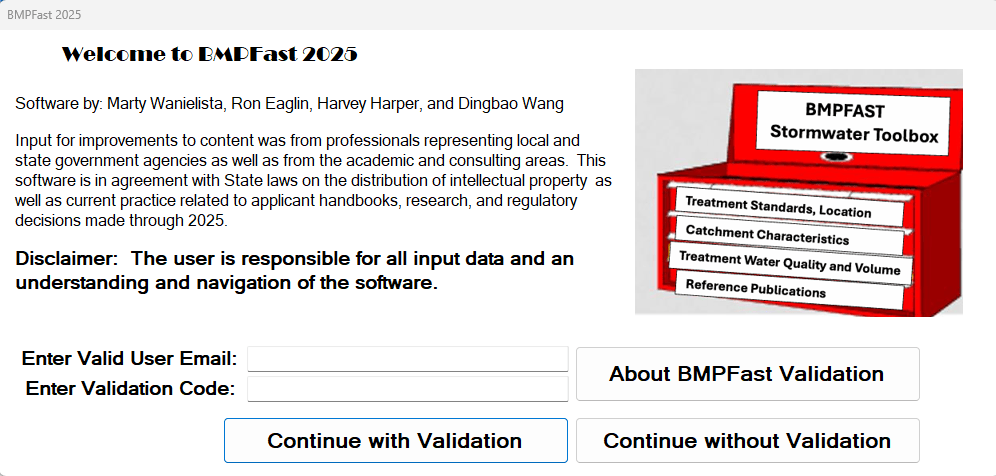
| Control | What it does |
|---|---|
| Continue | Opens General Site Information, the main BMPFast window. Shown only when this computer has an active license. |
| Validate License Key | Opens the BMPFast Activation window (below). Shown only when this computer does not yet have an active license. Until the license is activated you cannot go past the Splash screen. |
| License Information | Also opens the BMPFast Activation window. Use it on an activated computer to see the license status and expiry date, or to move the license to another computer. |
| Quit | Closes BMPFast. |
Activating BMPFast
- Make sure the computer is connected to the internet. Activation contacts the BMPFast activation server.
- On the Splash screen press Validate License Key.
- Type or paste your key in the License Key box (format XXXX-XXXX-XXXX-XXXX; letters may be typed in lower case).
- Press Activate (or the Enter key). The status line shows “Contacting activation server…”, then “BMPFast activated successfully. Thank you!”
- Press Continue in the Activation window, then Continue on the Splash screen.
| Activation window item | What it means |
|---|---|
| License Key | The key you received when you purchased BMPFast. |
| Activate | Sends the key to the activation server. On success the key is stored on this computer and the button is disabled. |
| Cancel / Continue | Reads Cancel until the license is activated (closes the window without activating), then Continue. |
| Status line | Green for progress and success, red for a problem (see below). |
| License details | Shown on an activated computer: Status (green when active, red when not), the expiry date (amber when 30 days or fewer remain, red once expired), and Activations used (for example “Activations: 1 of 2 used”). If the details cannot be retrieved (for example when offline) it says “Could not retrieve license details (offline?).”; the license on the computer still works. |
| Purchase a license | Opens bmpfast.com. |
| Move license to another machine | After you confirm, tells the activation server to free this activation and removes the license from this computer, so you can activate the same key on another computer. Do this while connected to the internet: the license is removed from the computer even when the server cannot be reached, but the activation is then not freed. BMPFast on this computer will ask for a key again at the next start. |
Activations: how many computers a key allows
- Each activation is one computer. Activating the key on a computer uses one activation; activating it again on the same computer after a reinstall may use another.
- Each key allows from 1 to 20 activations, depending on the key you purchased. The number for your key, and how many are used, are shown under License details in the Activation window, for example “Activations: 1 of 2 used”.
- To use the key on a new computer, open the Activation window on the old computer and press Move license to another machine while connected to the internet. That frees its activation, and the key can then be activated on the new computer.
- If the old computer is lost, broken or already wiped, the activation cannot be freed from it. E-mail info@bmpfast.com or support@bmpfast.com with your license key, and we will reactivate it for you.
- When a key has used all its activations, activating it on another computer fails with a message from the server that the activation limit has been reached (see below).
If activation fails
- “Please enter your license key.” — the License Key box is empty.
- “Cannot reach the activation server. Please check your internet connection.” — connect to the internet (or check that a firewall or proxy is not blocking BMPFast) and try again.
- “Activation failed. Please check your key and try again.” or a message from the server (for example that the key has reached its activation limit or has expired) — check the key; if the key has been used on another computer, use Move license to another machine on that computer first.
- Any other message — note the whole message (it may include a reference ID) and send it to info@bmpfast.com or support@bmpfast.com.
If you have lost your license key, e-mail info@bmpfast.com or support@bmpfast.com and we will provide it. The key in use is shown in the title bar of General Site Information.
If you purchased BMPFast, you will have a valid key. For any problem with your key or its activations (a lost key, a lost or broken computer, or a key that has used all its activations), e-mail info@bmpfast.com or support@bmpfast.com. We will provide the key, reactivate lost activations, and make sure you have a valid key.
For the other benefits of a license (online learning and certification), see BMPFast Certification. To buy BMPFast or download the most current version, visit Download BMPFast.